Open Rollercoaster Tycoon 2
Site Documentation Getting Started
Open Rollercoaster Tycoon 2 is a source port of Rollercoaster Tycoon. It requires one of two games:
- RollerCoaster Tycoon 2
- RollerCoaster Tycoon Classic (not Deluxe)
You can also add files from RollerCoaster Tycoon 1, either from Classic (above) or from RollerCoaster Tycoon Deluxe.
RollerCoaster Tycoon 2, Classic and Deluxe are all available through GOG's RollerCoaster Tycoon Bundle, which also comes with RollerCoaster Tycoon 3.
Installation
- Install RollerCoaster Tycoon 2/Classic, (and, optionally, Classic/Deluxe) on your system before installing OpenRCT2. Be mindful of the directory where you install it; you'll need it.
- Install OpenRCT2 by downloading the installer.
Adding Rollercoaster Tycoon 2 Files
As part of the installation process, it will ask you to find the directory where your RollerCoaster Tycoon 2/Classic files are installed.
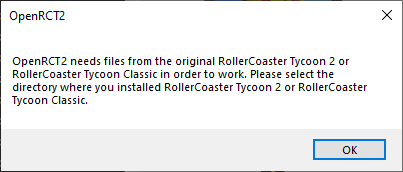
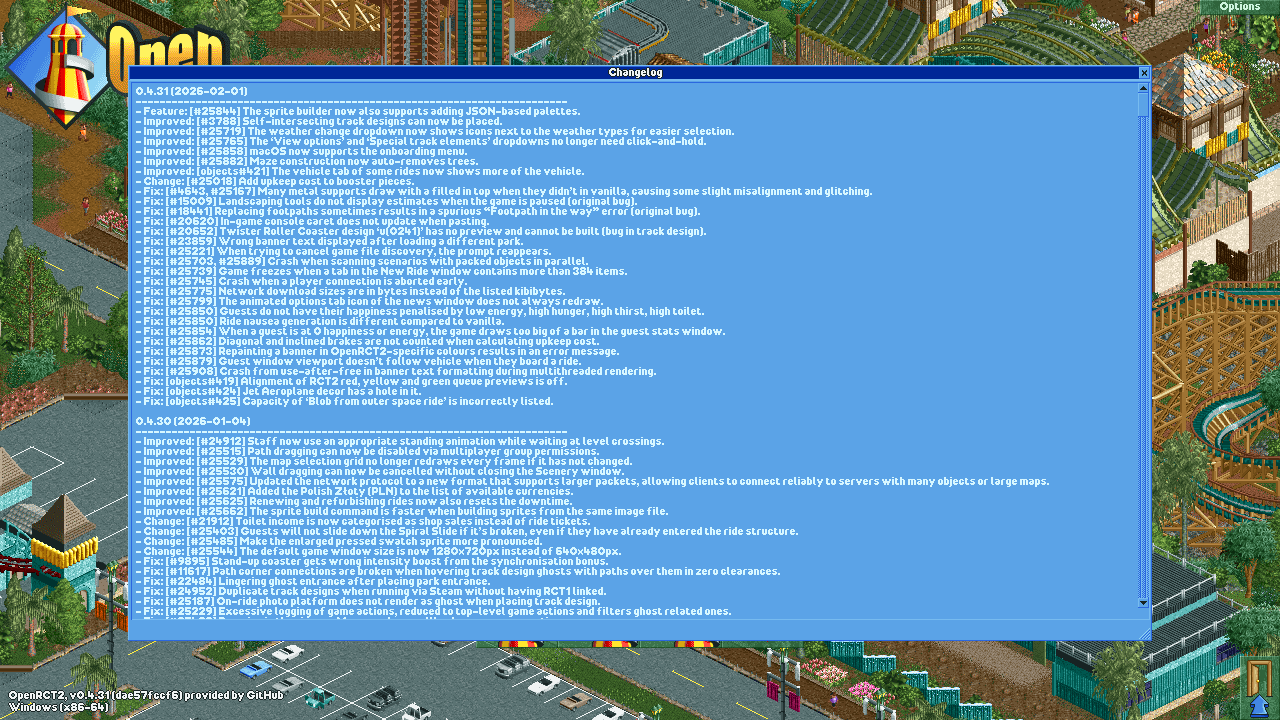
Find the directory where you installed your game; the game should then launch, and you should see the changelog (only the first time you launch).
Adding Rollercoaster Tycoon 1 Files
If you used RollerCoaster Tycoon 2 above, you may want to add files from RollerCoaster Tycoon 1 (scenarios, mainly) to OpenRCT2.
By installing RollerCoaster Tycoon Classic or Deluxe, you can import the files by clicking the option in the OpenRTC2 options, under the "Advanced" tab.
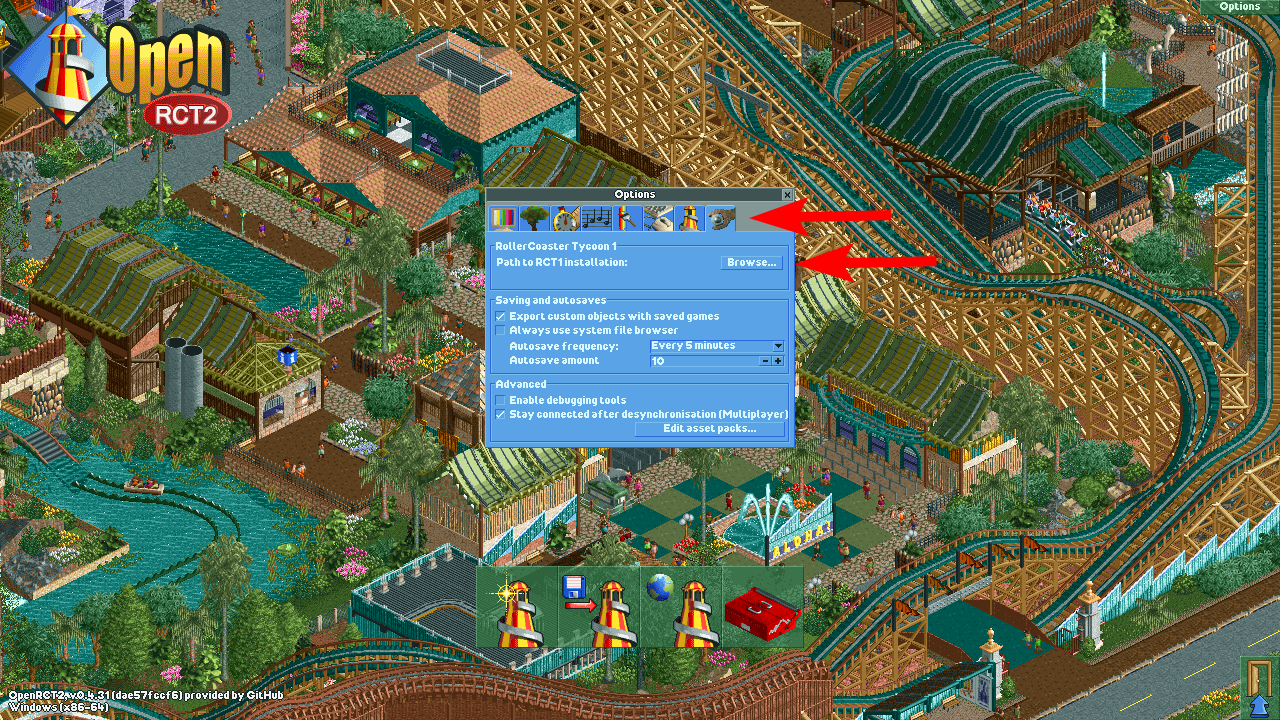
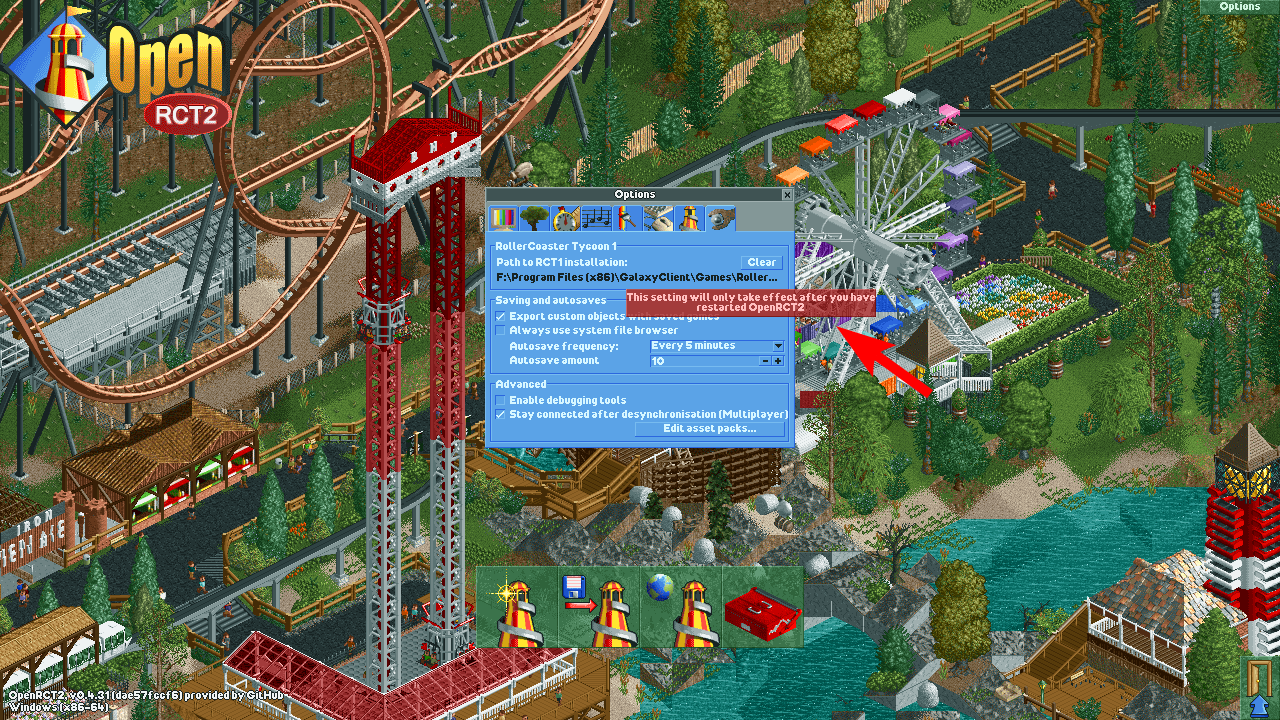
You'll know if it's successful if it tells you to restart OpenRCT2 to apply the files.
Syncing Saves
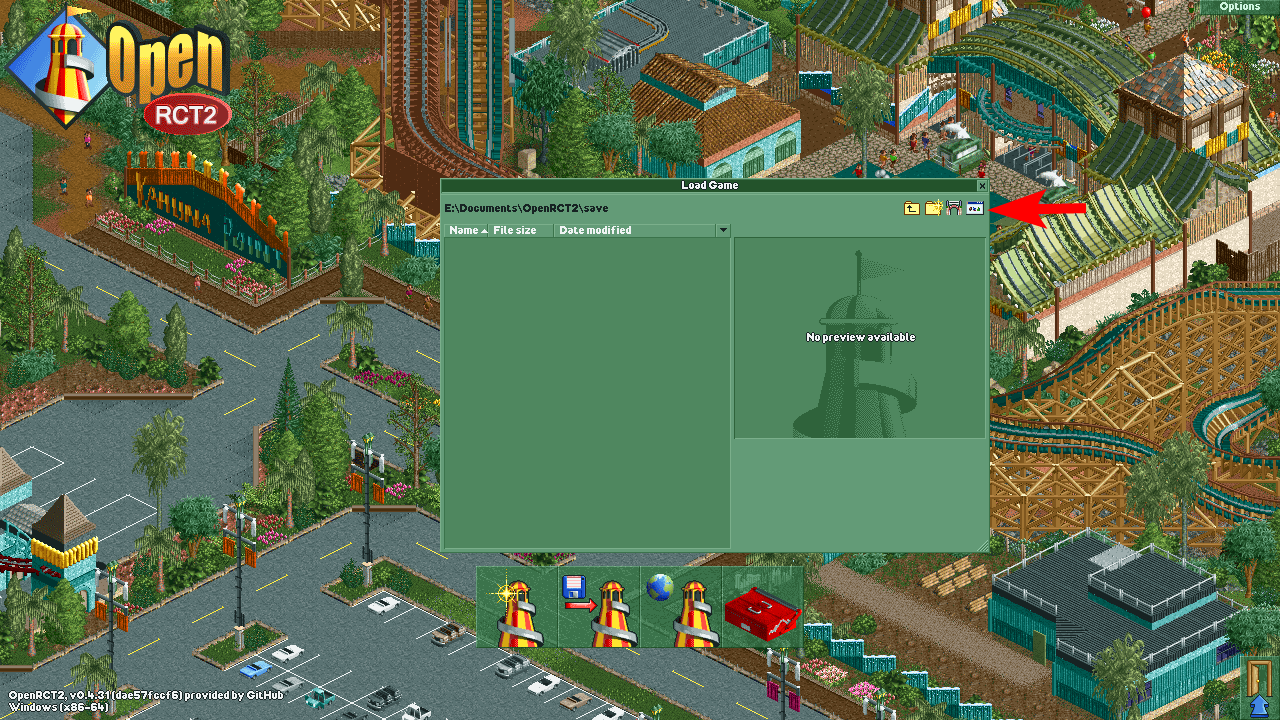
Thankfully, OpenRCT2 allows you to save wherever you want. When saving, you can select where you want to save using a Windows UI by clicking the button below.
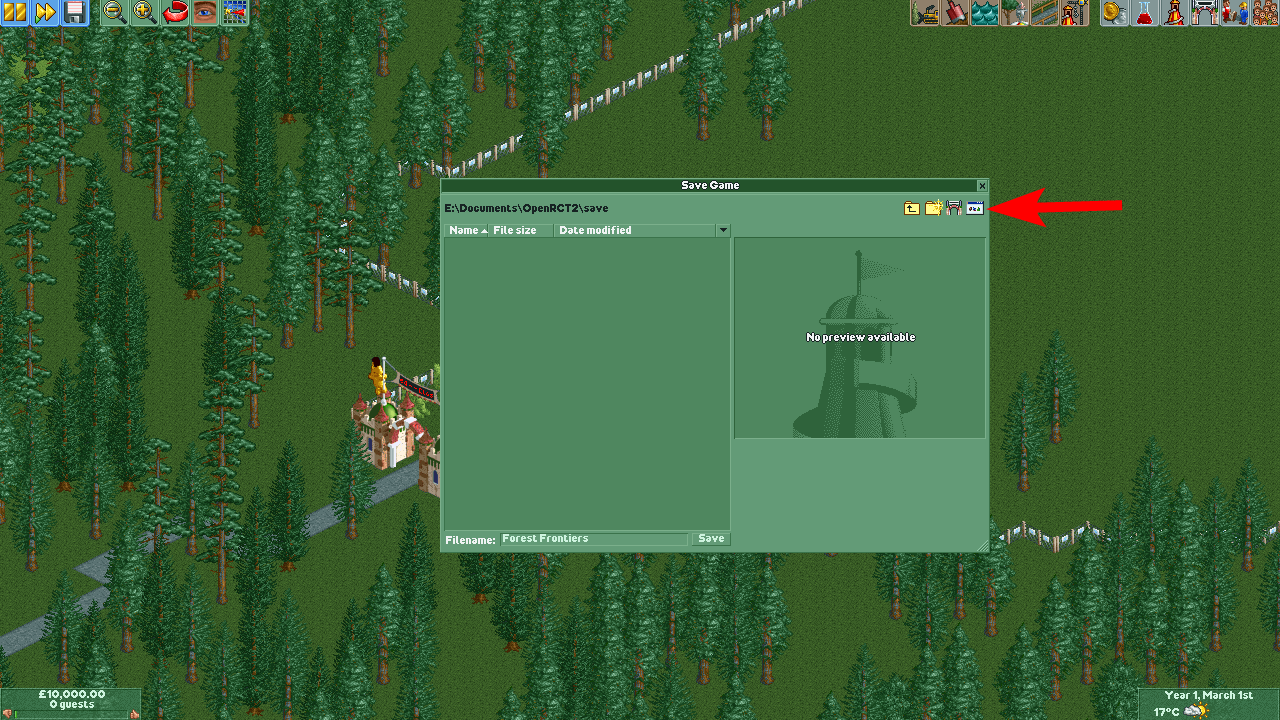
Put your save in any syncable folder (cloud services, SyncThing) and then open it on your device using the Load menu.