Star Fox 64
Manual Nintendo Strategy Guide Walkthrough
Installation - Ship of Harkinian
This Star Fox 64 port is a Ship of Harkinian project called Starship.
- Download a release from the Releases page for Starship. Extract it somewhere, and keep the folder handy.
- Find a ROM of Star Fox 64 online, and make sure it's in a .z64 format
- Place the ROM inside the same folder as where you extracted Starship.
- Run
Starship.exe; a window should pop up asking about generating anO2Rfile. Click "Yes." You may need to locate your ROM. - A command prompt should open and a bunch of code should start scrolling. Stay calm, this is okay.
- Eventually, the process will finish and the game will open. From now on, Click
Starship.exein order to open the game.
Customizing your Game
When the game is open, type F1 on your keyboard to open the menus.
Controls
While my Zelda 64 Layout worked well for many N64 games, Star Fox 64 demands some tweaking, just to make boosting/braking better. It also maps Z and R to triggers for easier barrel rolling.
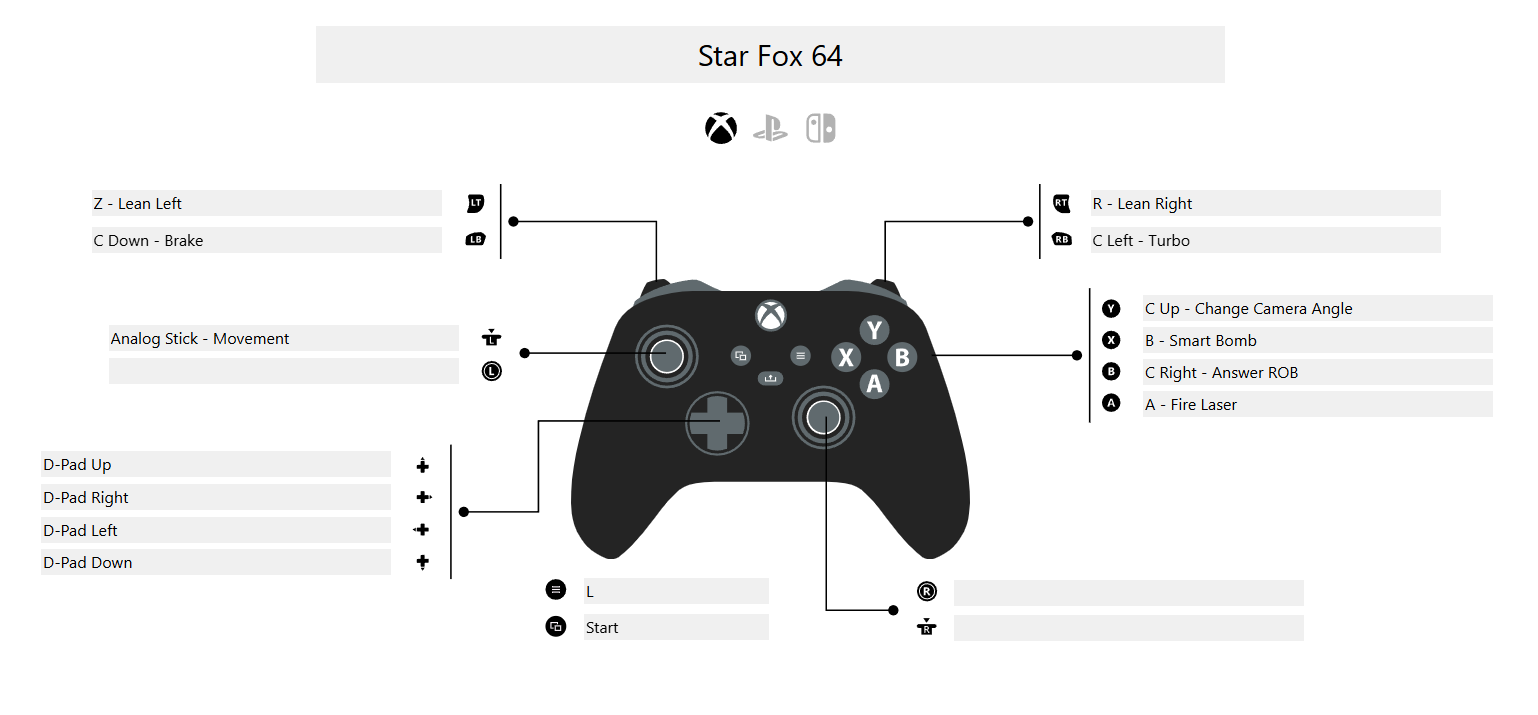
Click the image to enlarge it.
Installation - Recompilation
- Download the latest release of the Recompilation. Extract it to a folder (for reference, we'll call it
Starfox64Recomp). - Create a blank text file called
portable.txtin the folder (see Save Syncing for why) - Start
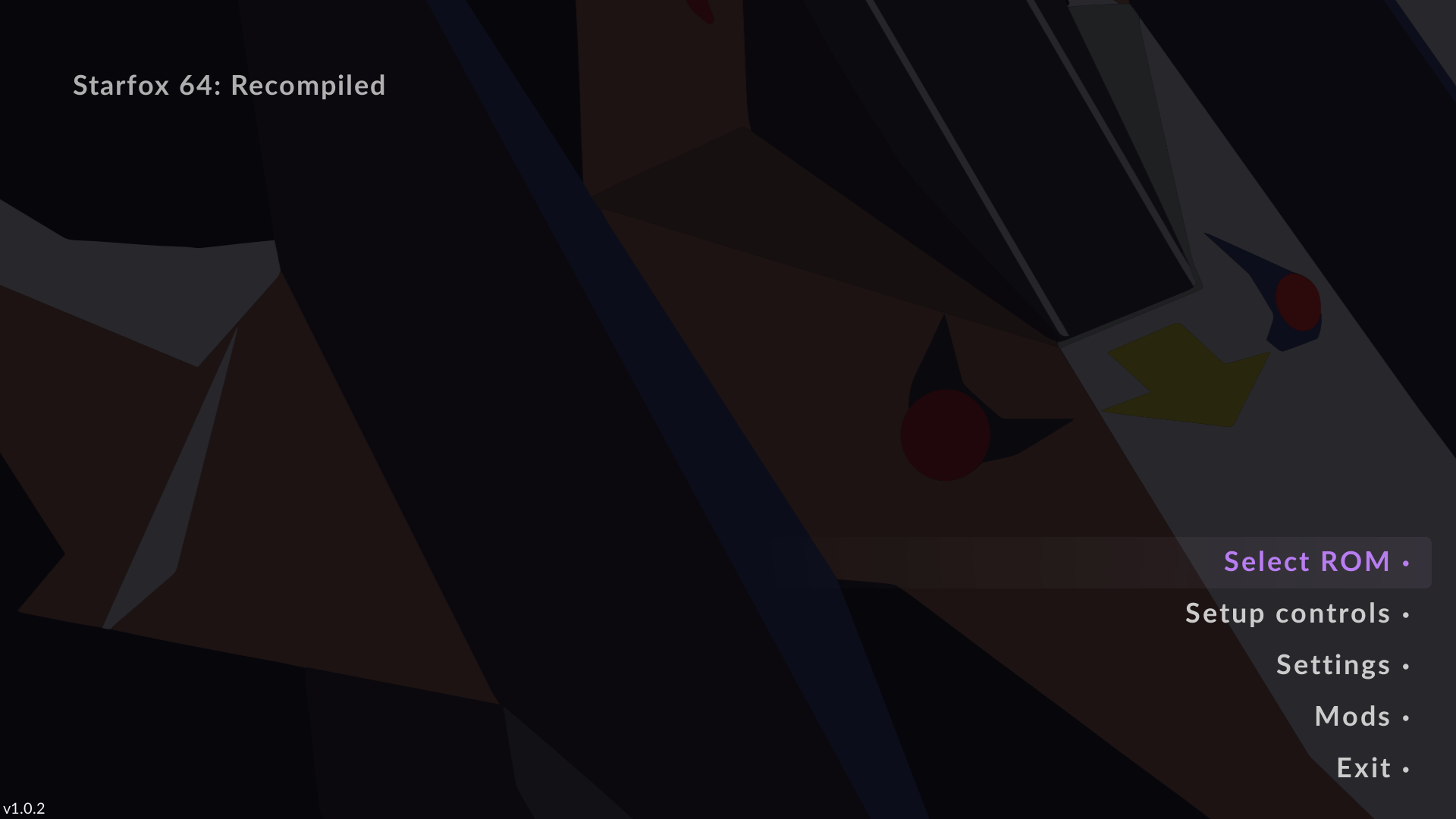
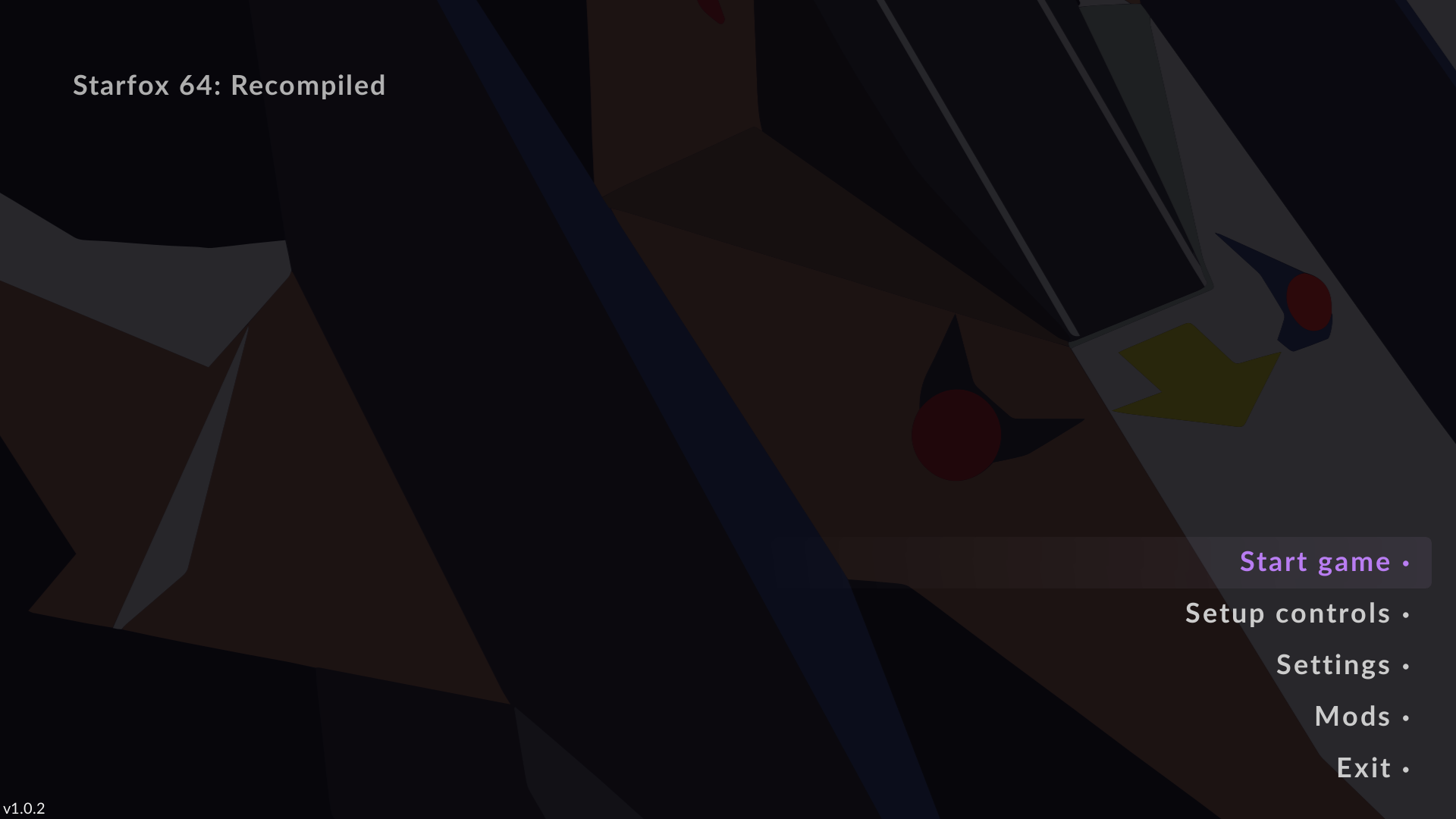
Starfox64Recompiled.exe. - Use "Select ROM" on the title screen to find your
.z64ROM. "Select ROM" will change to "Start game."
Syncing Saves
By adding portable.txt to our folder during installation, it meant that our save data is saved within Starfox64Recomp under the saves folder. This makes syncing it using SyncThing simple.
To sync using SyncThing:
- Create a folder sync that points to your
Starfox64Recompfolder. -
In the
Ignore Patternspane, add:!/saves * -
Before sharing the folder using SyncThing, download and extract the Recompilation on your second device. Make sure to also add
portable.txtto the new installation. - Share the folder using SyncThing.
- On your second device set the folder's target to be inside your
Starfox64Recompdirectory. Example:D:\Starfox64Recomp- thesavesdirectory will be automatically created.
Controls
From the Settings menu, you can modify your controls.
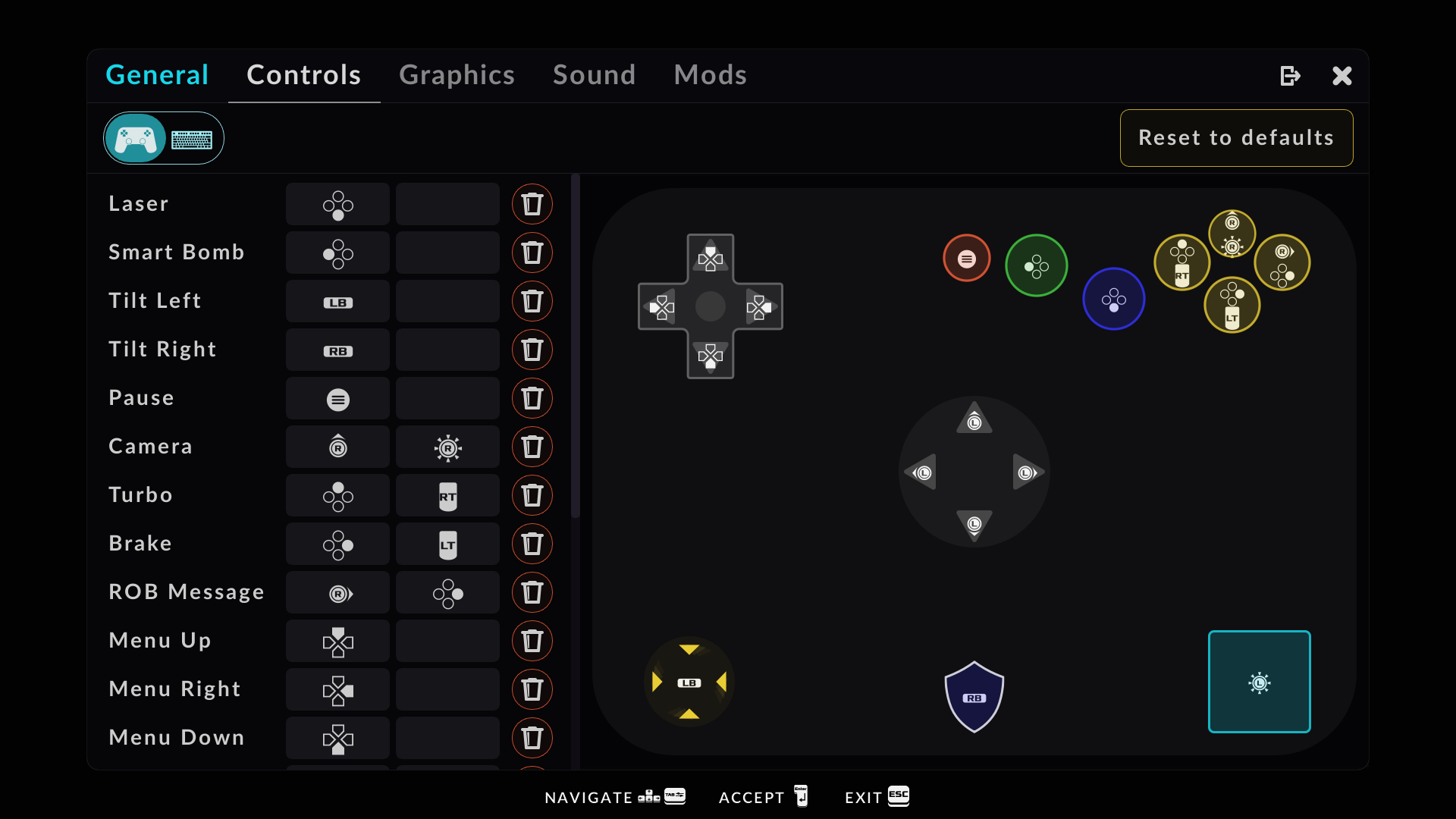
The default controls are slightly different from my suggested mapping above (moving Brake/Boost to the triggers and changing the camera perspective to RS), but you can experiment to see what's best for you.