Accessing Your Router's UI
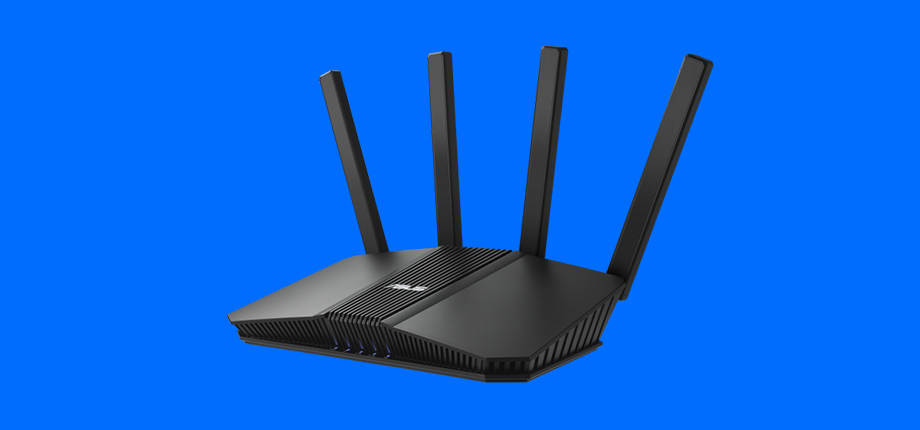
A router is a very important part of your home network. Your router:
- Allows your devices to talk to each other over a network.
- Allows multiple devices to use your home's Internet connection.
- Allows your devices to connect to the network wirelessly.
- Manages the IP addresses for those devices.
Your router is your manager of your network. It helps it work, and keep working smoothly.
Sometimes, you're going to have to access your router, and thankfully, you can do it from almost any device.
Accessing your Router
You can access your router by opening a browser window on your computer. While you could do it from a phone, I prefer to do this from a device with a keyboard, since we're going to have to do some typing.
For some devices, typing the device's IP Address into a browser bar will let us access a menu, or settings page. We're going to do that to access your router.
Rounding up information
We're looking for three pieces of information about your router:
- Its default address. This will typically start with the numbers
192.168. - Its default username to access its settings page.
- Its default password to access its settings page.
The username and password may have been changed by your Internet company when they installed your router, but it's still worth having the defaults on hand, just in case.
Finding Information Through A Command Prompt
On Windows:
- Open the Start Menu, and type
cmd. OpenCommand Prompt. - In the Command Prompt, type
ipconfig /all. It will return information for every network adapter on your computer. A network adapter is a component that you use to connect to networks: you typically will have one for a wired port (if you have one), and one for your wireless radio (your Wifi). - If you're connected via wire, look for the Gateway address associated for that adapter. If you're connected wirelessly, look for the Gateway address associated with that component.
- That is typically the address for your router. If you type that into a browser window, you should arrive at a screen asking for a username and password.
Finding Information On the Router Itself
The router itself will typically have a sticker, which has information regarding the serial number, model number and other information.
That sticker may have an IP address (typically starting with 192.168), or a URL (for example: http://tpconnect.com). It also may have a default username and password. Note those down.
If the sticker doesn't have either of those things, find and note down the model number of the router. We can use that in order to find the details for that unit online.
If you are only able to find the model number, open a search engine and type "[Model Number] manual PDF" or "[Model Number] default IP" or "[Model Number] default login". Those will give you information.