The Legend of Zelda: Ocarina of Time
Wiki Walkthrough Manual (Nintendo)
While I've mentioned that there is a Zelda 64 Recompilation, the only released game is Majora's Mask. At the moment, the only native PC port for Ocarina of Time is Ship of Harkinian.
Ship of Harkinian
The Ship of Harkinian is an effort to port the Nintendo 64 Zelda games to PC systems natively.
Guides for your specific system (Windows, Linux, Steam Deck, etc) can be found here.
On Windows
- Download Ship of Harkinian. Extract it somewhere on your hard drive. Keep this folder in mind.
- Download the Ocarina of Time ROM.
- Download
ZELOOTD.zipspecifically (by clicking this link)
- Download
- Extract
ZELOOTD.z64fromZELOOTD.zipand place it in the same folder assoh.exe(from Step 1). - Run
soh.exe; it should ask you: "No OTR files found. Generate one now?" - Click "Yes."
- There will likely be a confirmation that the ROM was found. Click
Yes.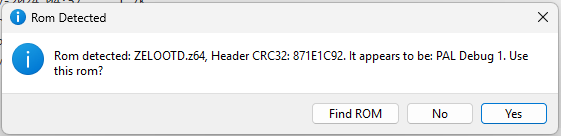
- An
soh.exewindow will likely show as the ROM extracts.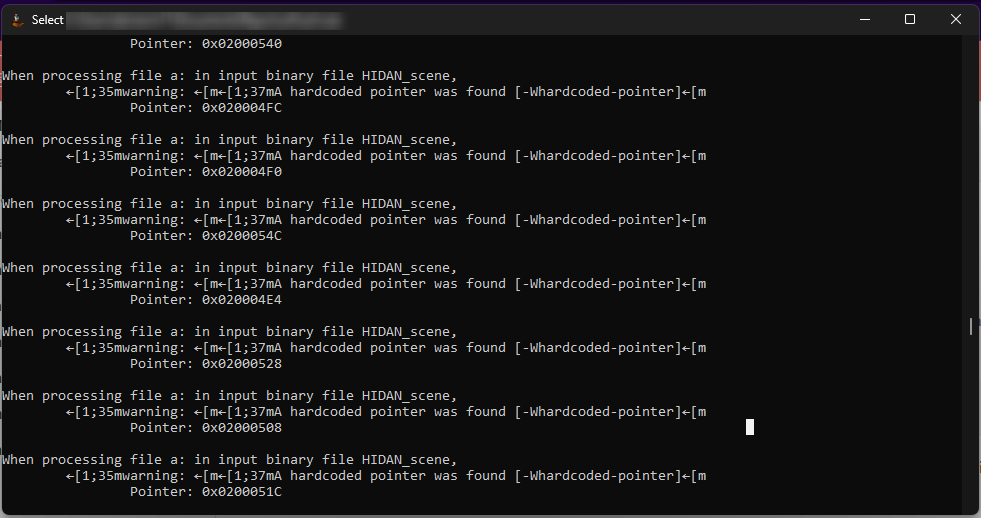
- When asked "ROM Extracted. Extract another?" click
No.
The game should automatically launch.
You can press Esc in order to open the options menu. This will allow you to configure controls, enable settings, etc. These are some default keys:
| Keys | Action |
|---|---|
| ESC | Toggle menu |
| F2 | Toggle capture mouse input |
| F5 | Save state |
| F6 | Change state |
| F7 | Load state |
| F9 | Toggle Text-to-Speech (Windows and Mac only) |
| F11 | Fullscreen |
| Tab | Toggle Alternate assets |
| Ctrl+R | Reset |
Syncing Your Save
Thankfully, Ship of Harkinian's saves are stored in the Save folder in its main directory.
To sync using SyncThing:
- Create a folder sync that points to your Ship of Harkinian folder.
-
In the
Ignore Patternspane, add:!/Save * -
Before sharing the folder using SyncThing, download and extract 2Ship on your second device.
- Share the folder using SyncThing.
- On your second device set the folder's target to be inside your Ship of Harkinian directory. Example:
D:\soh- theSavedirectory will be automatically created.
Options
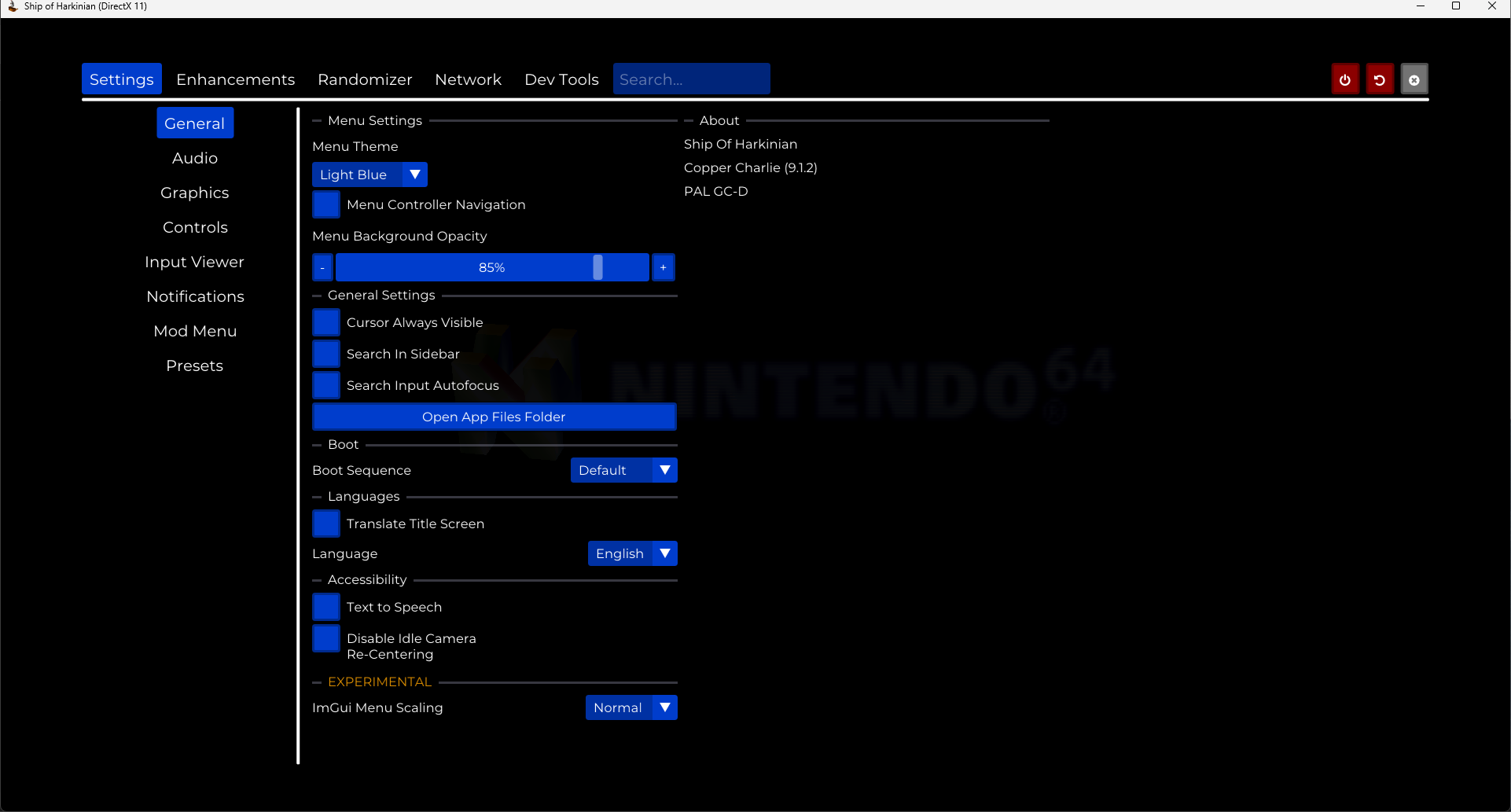
This is the main options screen. The main screens we'll be discussing are the Enhancements, Controls and Presets menus.
Enhancements
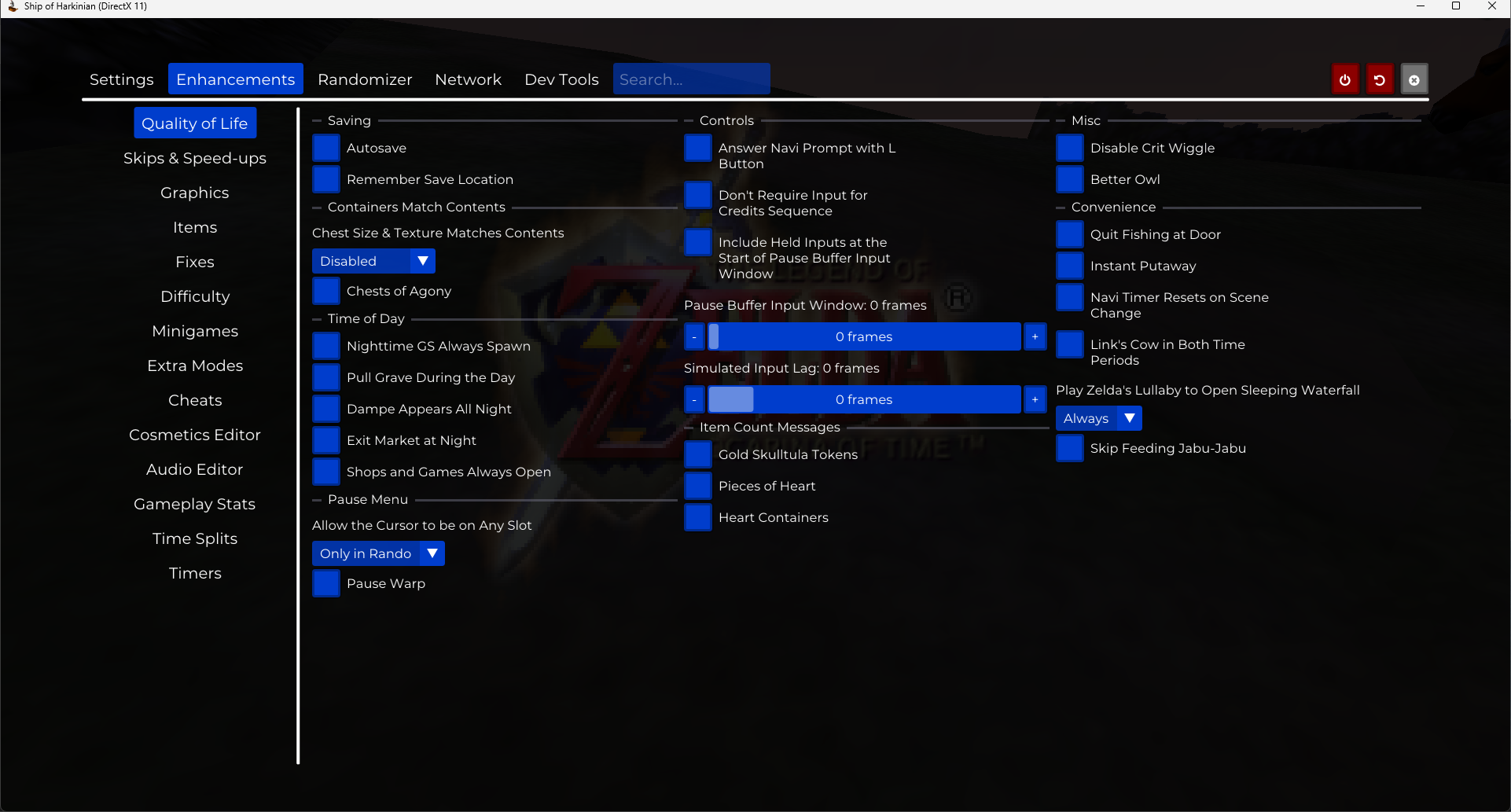
A lot of these are very optional changes, and hovering over them will give more context. In most cases, this can be better handled with the Presets menu that we'll discuss below.
Getting HD Textures
Go to this site and scroll to Downloads. Click the Ship of Harkinian logo (hard to see). Download either the 4K or HD files from the "SoH OTR" section.
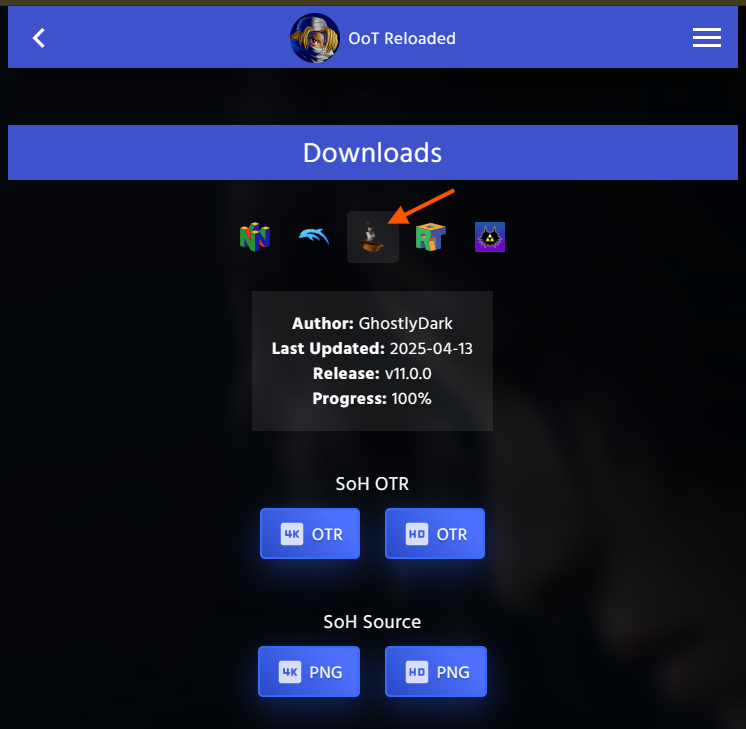
It will download as a .7z (7zip) file. Extract the .otr file inside of it, and place it into the mods folder in Ship of Harkinian's root folder (the folder you extracted in Step 1).
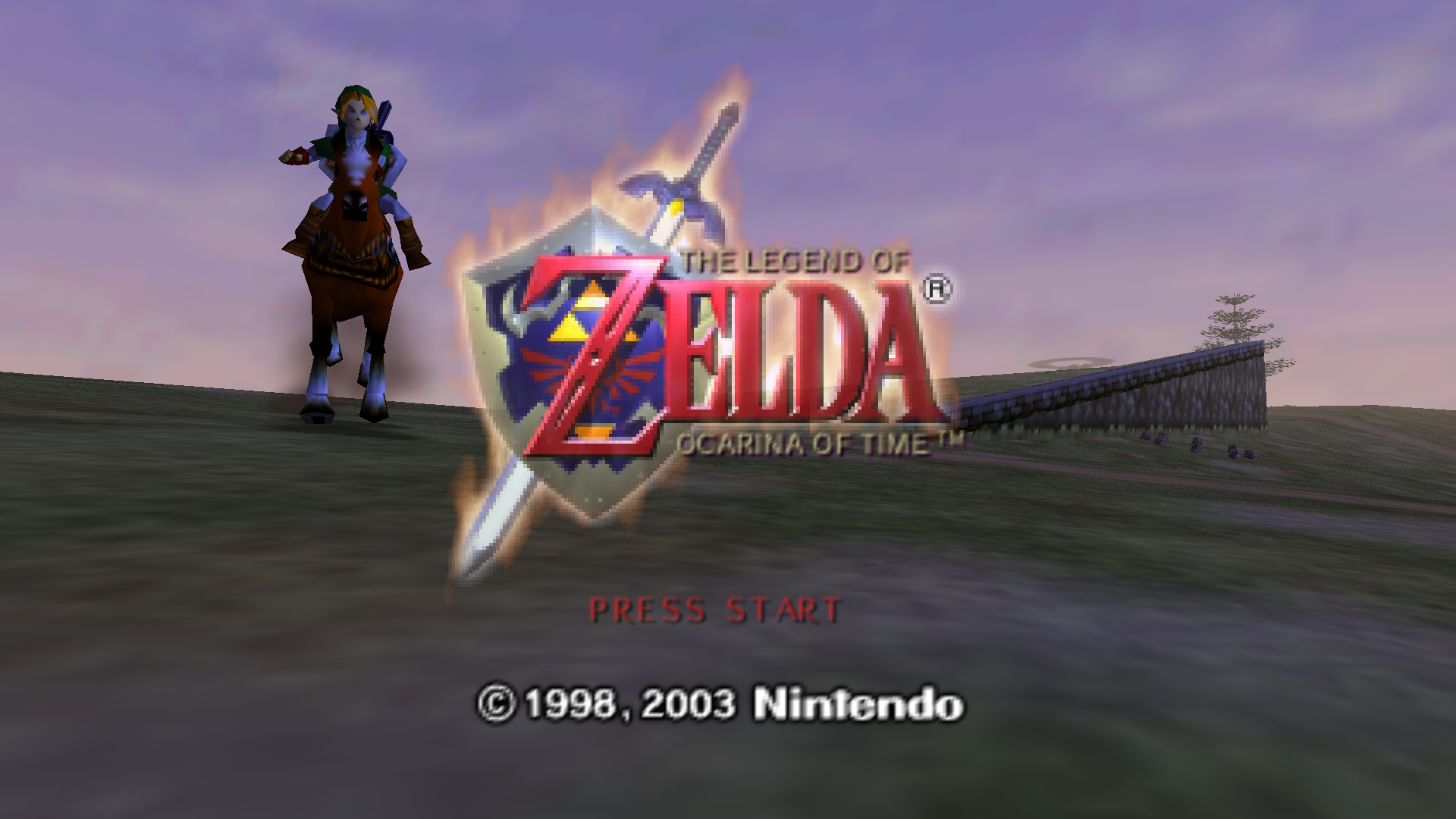
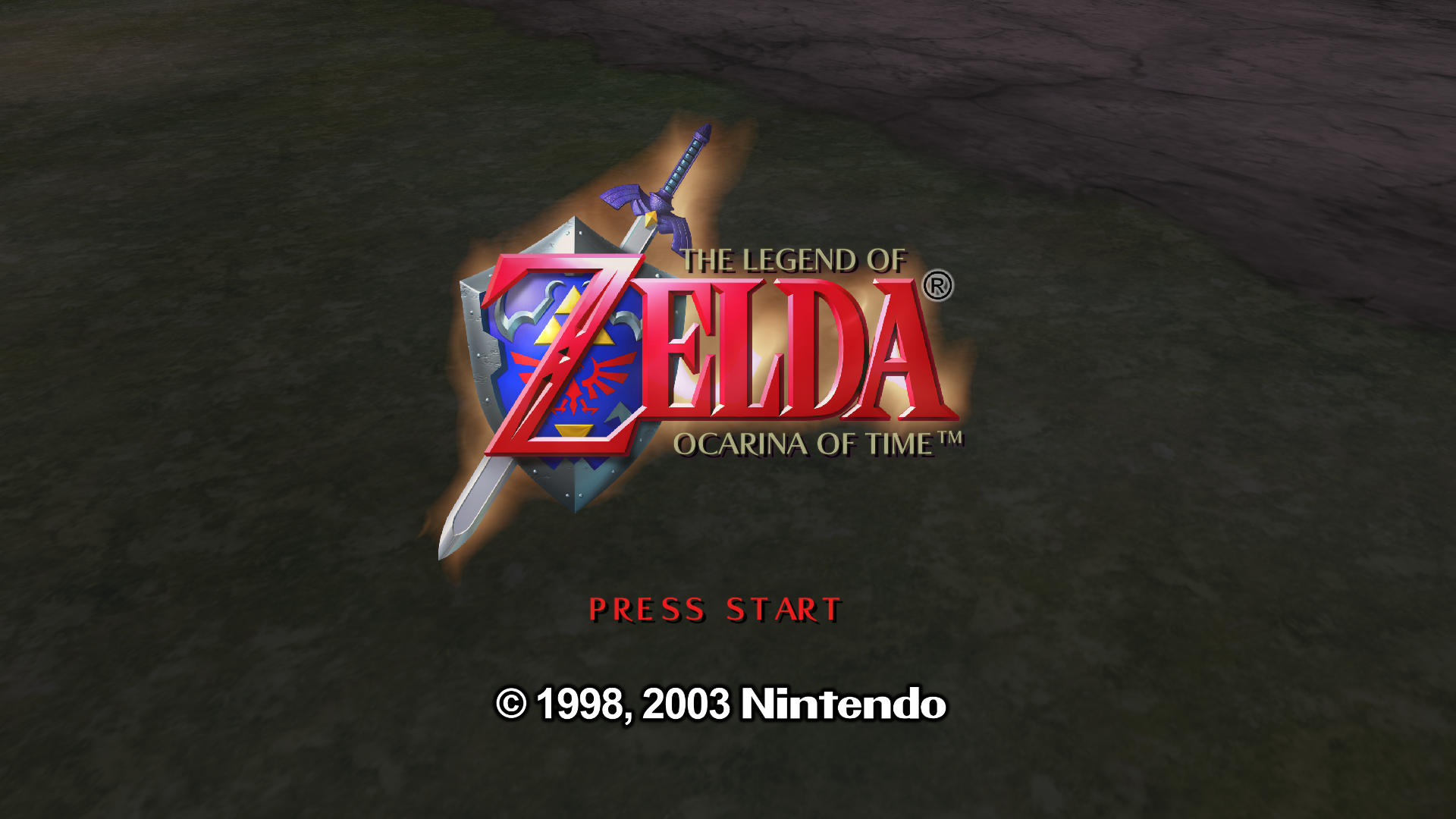
The game should auto-load the textures, but if they don't, you can press Tab to toggle them on and off.
Controls
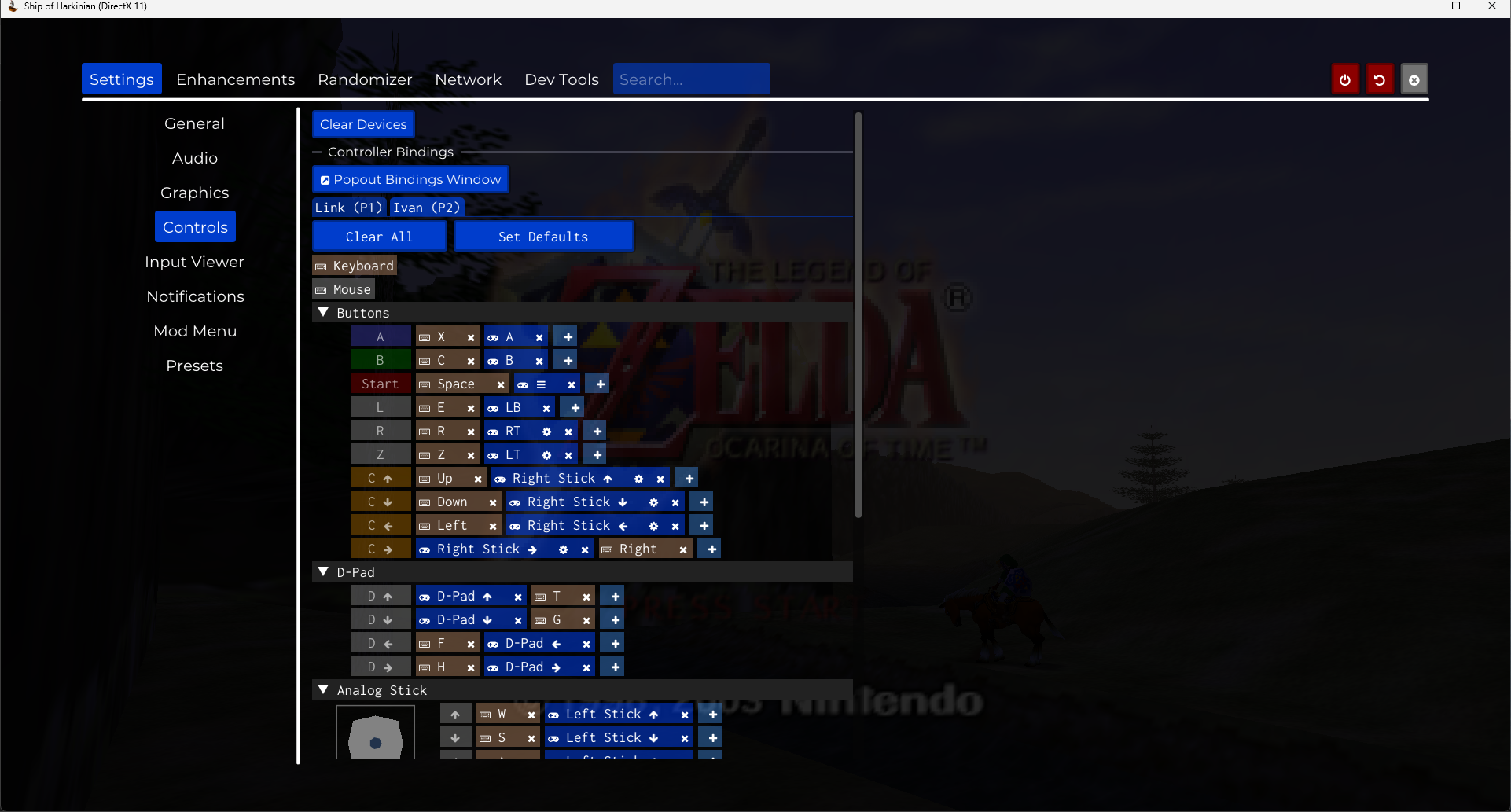
This is where we'll map actions to our controller. Below, I've included a suggested mapping, based on what's comfortable to me.
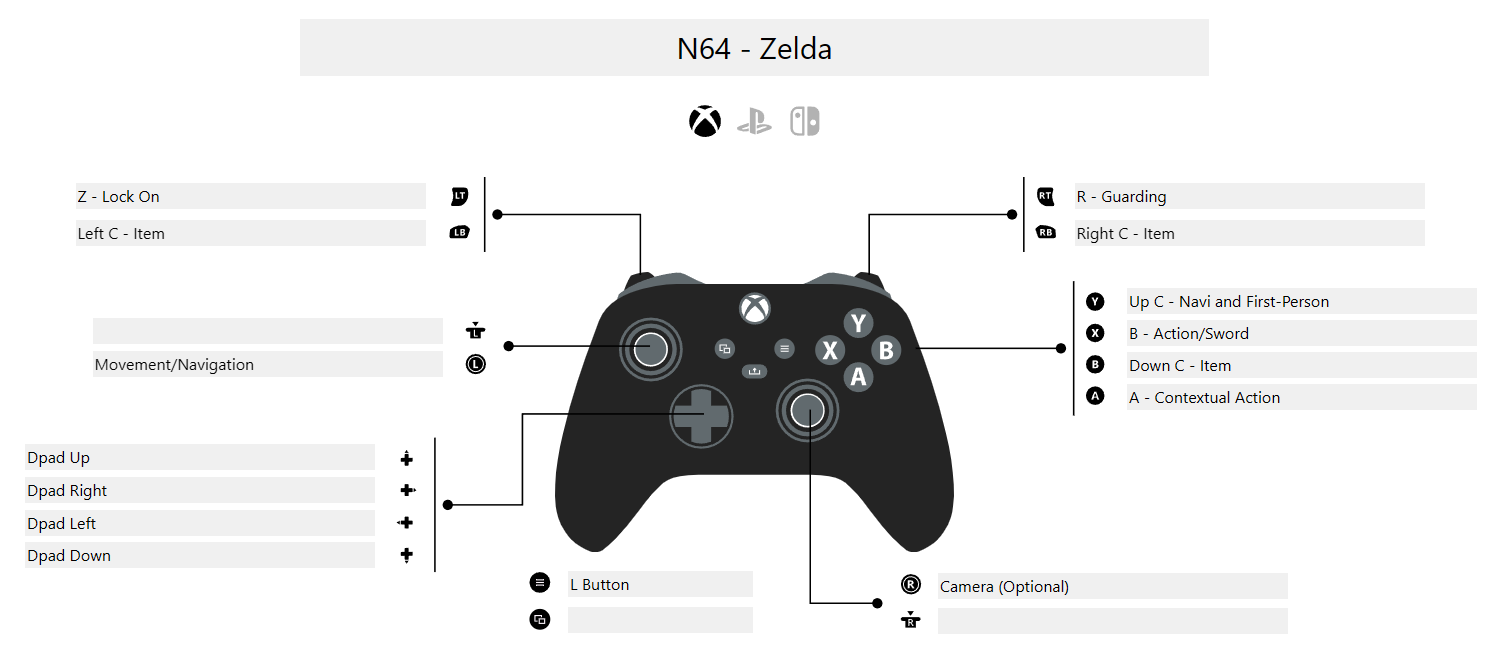
Presets
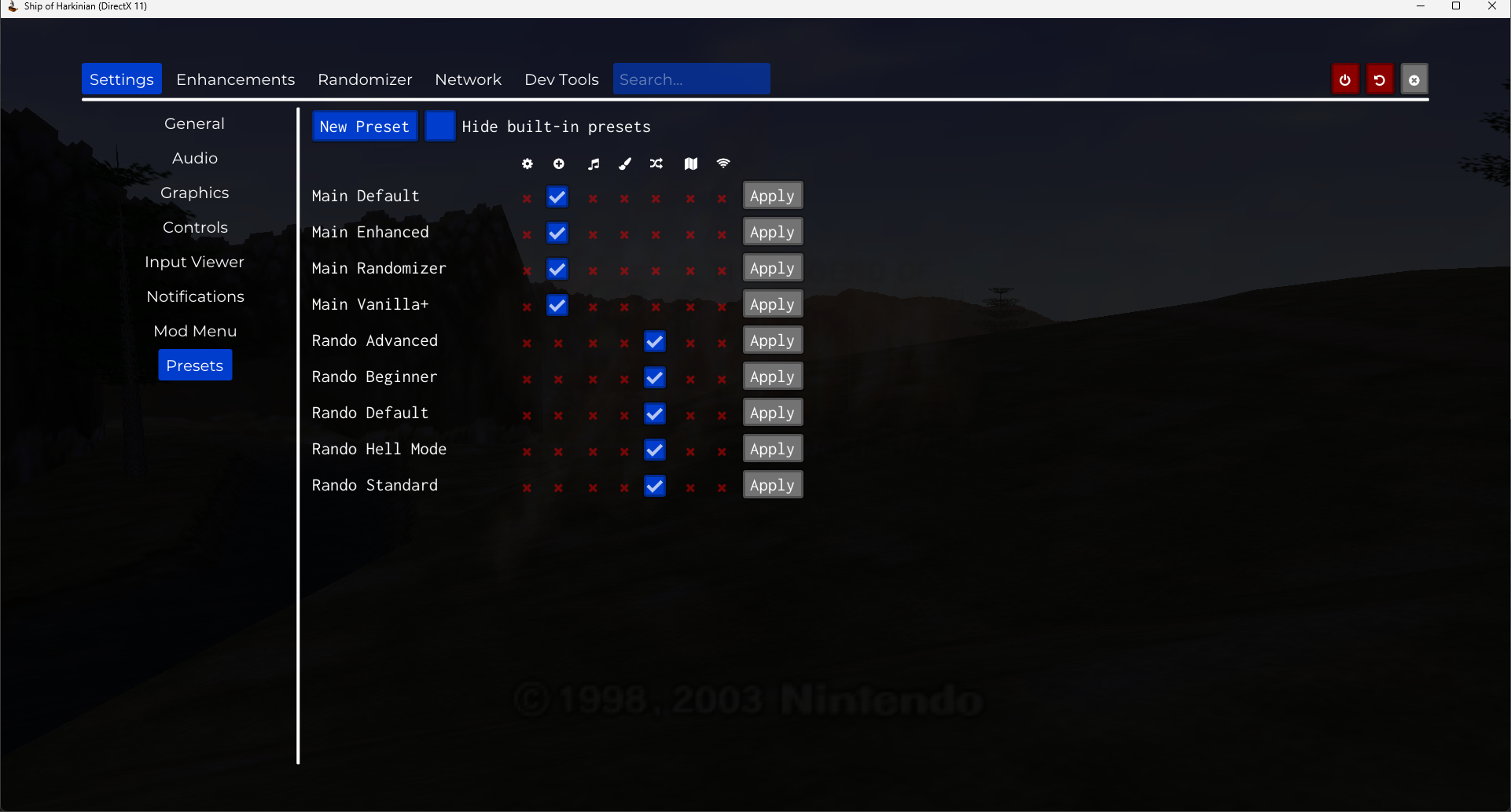
In this screen, we can quickly change the options and enhancements in the game based on our needs. For most cases, "Vanilla+" is good for first-time and returning players, as it adds a lot of quality-of-life features and fixes, like assigning items to the Dpad for more item slots, and being able to assign boots/tunics as items (for easy toggling on/off).