Fightcade2

Certain fighting game communities had a problem: their games weren't built for online play, and it was hard to coordinate play for them. Eventuaally, a universal netcode (GGPO) was created that allowed people to connect more smoothly with each other. This was built into a frontend called Fightcade, which provides chat lobbies, accounts and consolidated UI for playing these games with other people.
While Fightcade was primarily developed for fighting games, it also allows people to play other games (primarily ones found on arcade machines).
Installing Fightcade
- Download Fightcade and open the appropriate EXE or file. The installer will walk you through the installation.
- In the Fightcade folder, you will be able to launch Fightcade from
Fightcade2.exe. - Register for an account, and log in. This is sadly necessary.
Joining Rooms and Playing Games
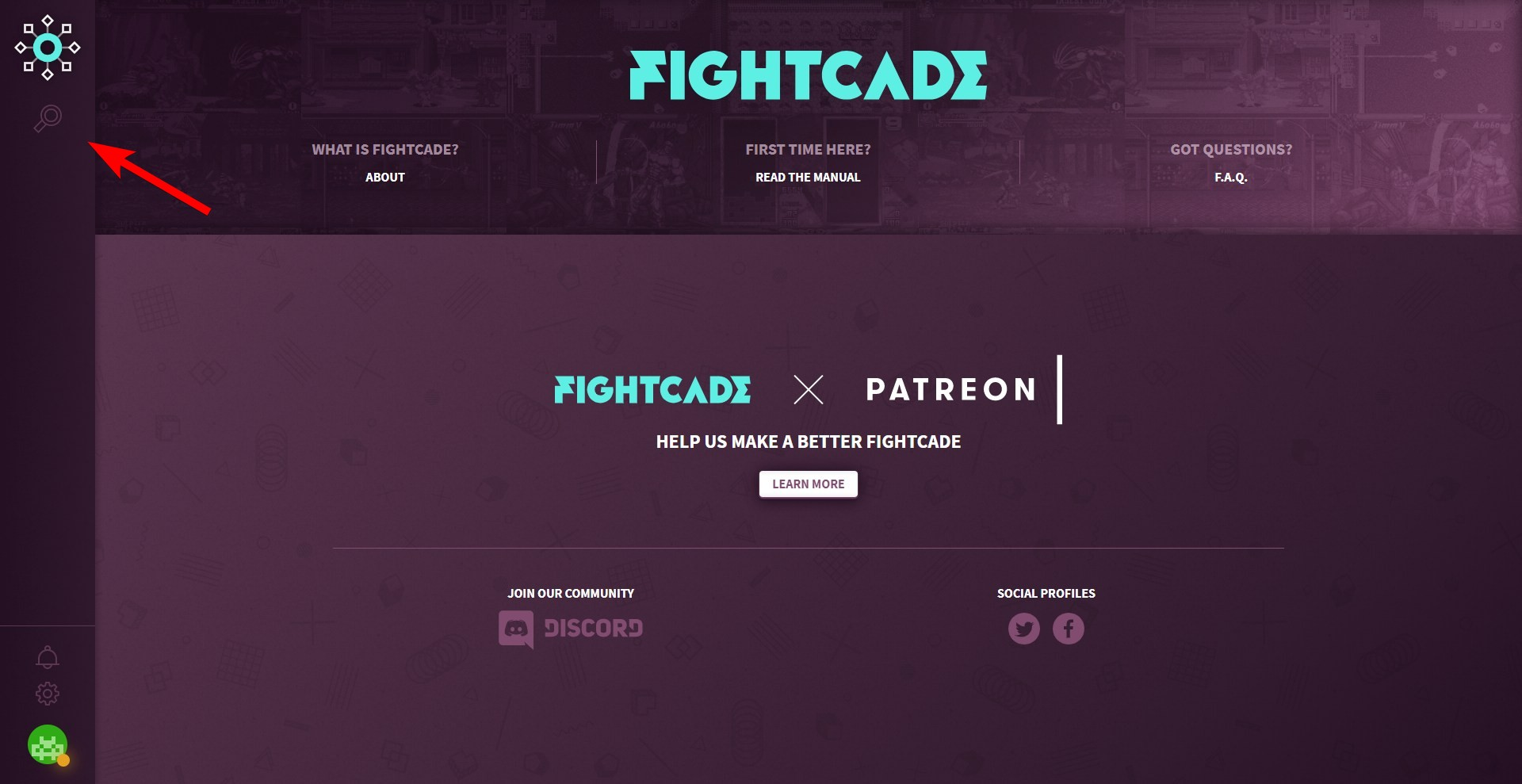
When logged into Fightcade, you can click the magnifying glass icon on the left pane in order to search for games.
Before you join!
I would advise changing your status to "Away" before joining a room by clicking your avatar in the bottom-left corner of the screen. When joining a room, people may interpret you as available to challenge if you don't. See "(3)" in the "Other Features" section below to see where to click.
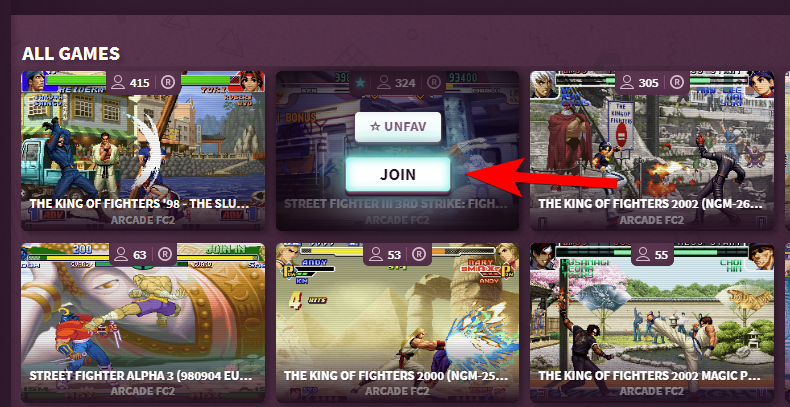
After finding your game, you can favourite it, and click "Join" to join the room for the game. You can only join three game rooms at a time (this is a limitation to encourage people to sign up for Fightcade's Patreon).
After joining a room, you're kind of in the "normal" mode for using the software. If you've installed the appropriate json files, the ROM will download. Otherwise, you'll need to have the proper ROM (including the proper version and locale) to play.
Mapping Controls
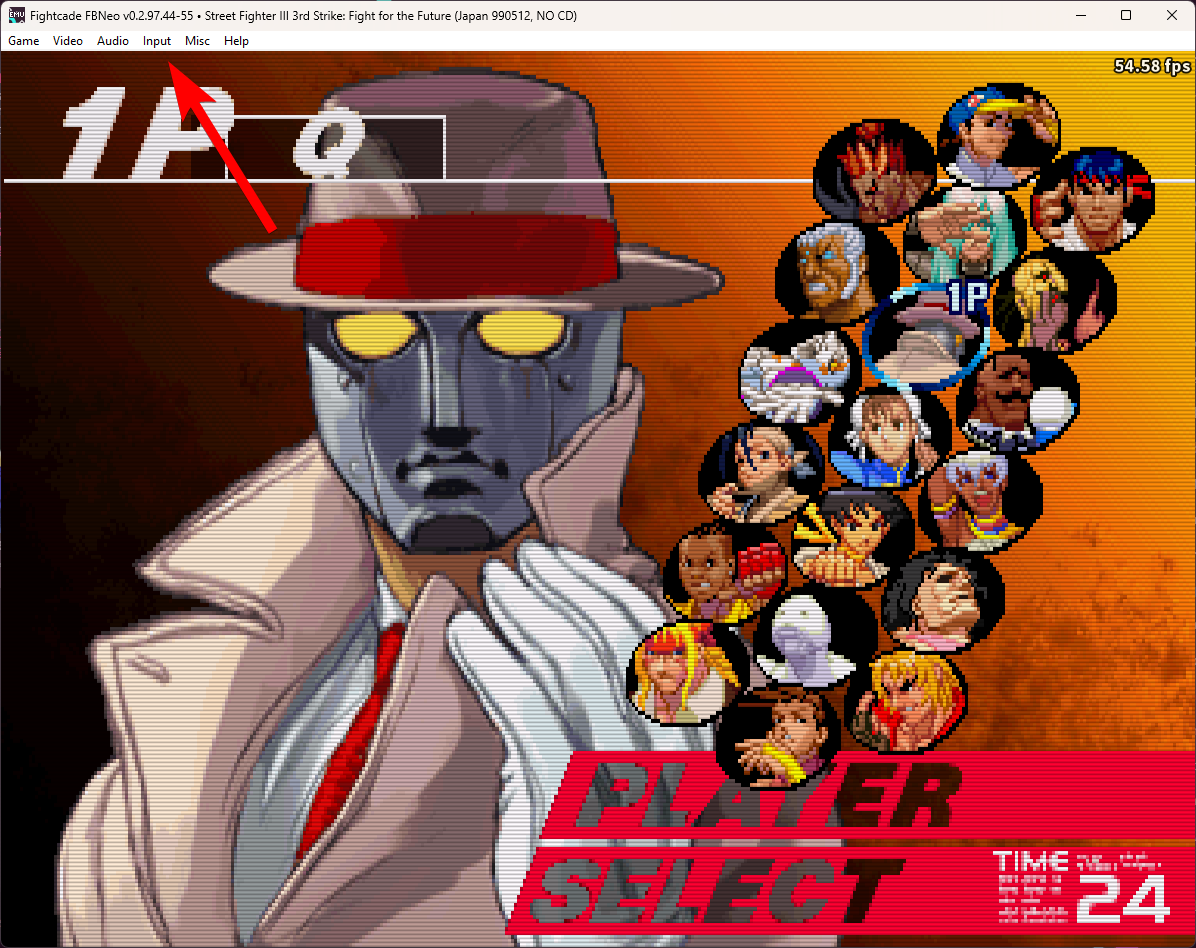
A benefit of clicking "Test Game" before jumping in is that you can map your controls. If the game uses fbneo as the emulator, you'll be able to access the control mapping UI by clicking the Input menu item and then Map Game Inputs (or by hitting F5).
Other Features
Below, you can find a few more features that may be useful to you.
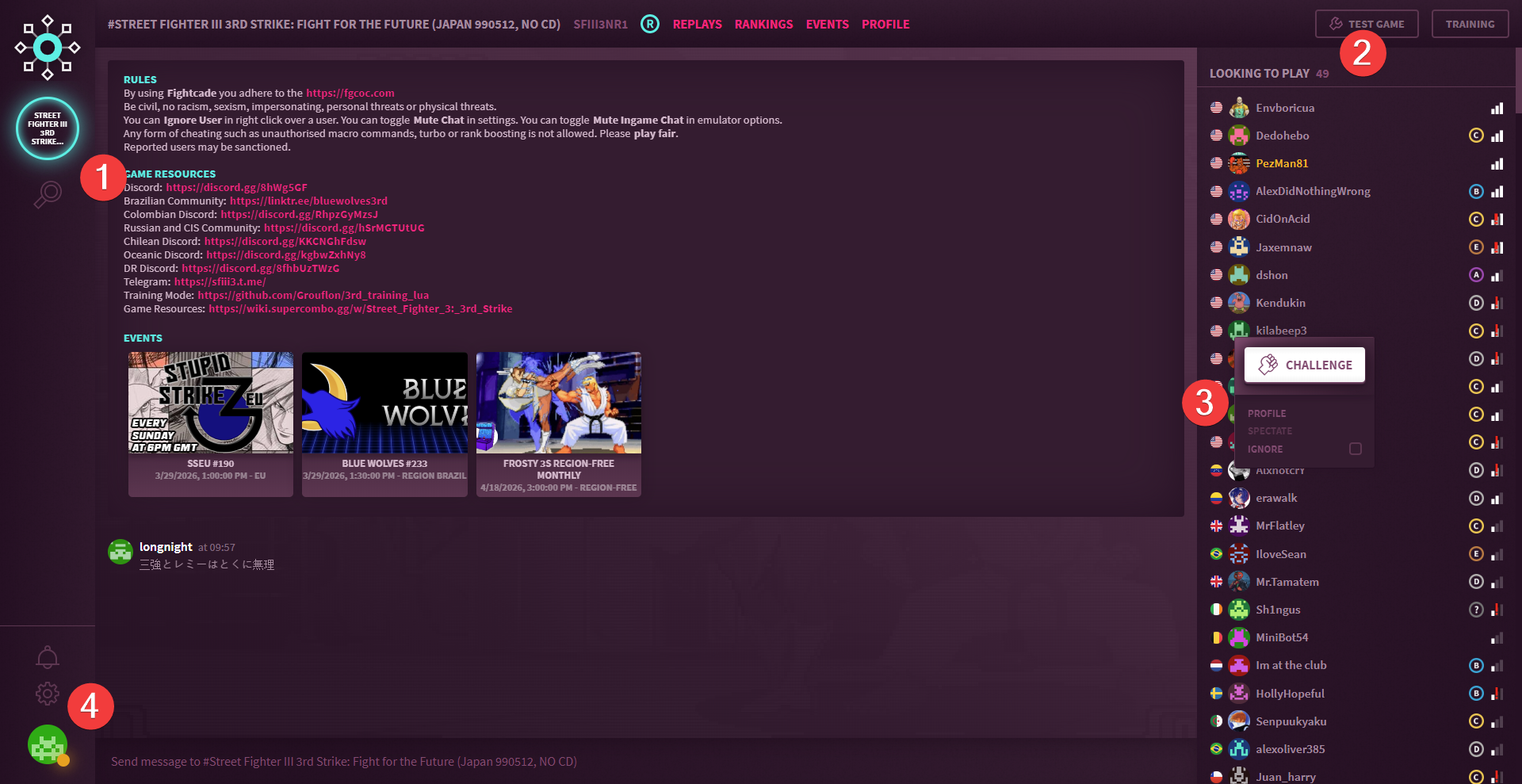
- Rooms you've joined are listed at (1).
- If a game supports testing it, or a training mode (mostly for fighting games) you can access it through (2) while in a room.
- To challenge someone else, you can right click their name in the list and click "Challenge" (3).
- In the bottom-left, you can access your profile, options, and change your status (4).
ROM Downloads
Intrepid users have found a way to add json files to your installation folder to automatically download the correct ROM to play.
- Download
fc2roms.zipfrom the lofi site. - Extract the
jsonfiles inside into theemulatorfolder that's inside yourFightcade2directory. - When you join a room from Fightcade, the ROM will be automatically downloaded.