Using Tailscale to Access Networks Remotely

Over the last few years I've become more into self-hosting things; I have a small server that I use for personal webapps and services, instead of using ones offered by larger companies. This allows me to control my own data and privacy.
These services are typically accessed through web pages that are only available on your home network; without setting anything extra up, if you leave your wifi or network, you won't be able to access the page.
There are a couple ways around that:
- A "reverse proxy" can be set up to assign a URL that you own to point to that page. This means that when you go to the URL, it "points" to the URL that's inside your network.
- You can also set up a VPN, so that your network thinks that your device is on your home network, when it really isn't.
Out of these two options, VPNs are more private — having your web service exposed to the internet via URL means that random people who find it can try to break in.
Tailscale is a service that makes the VPN-like setup a lot easier.
Install Tailscale
- Sign up for a Tailscale account.
- Download Tailscale for each device that you want to be able to access your services.
- Sign into Tailscale on each device you've installed it on. Each device should show up on the admin page for devices on Tailscale.
Accessing a Webapp Through Tailscale
Now that your devices are linked together through Tailscale, each one of them is given an address or IP address for the other devices to access them through.
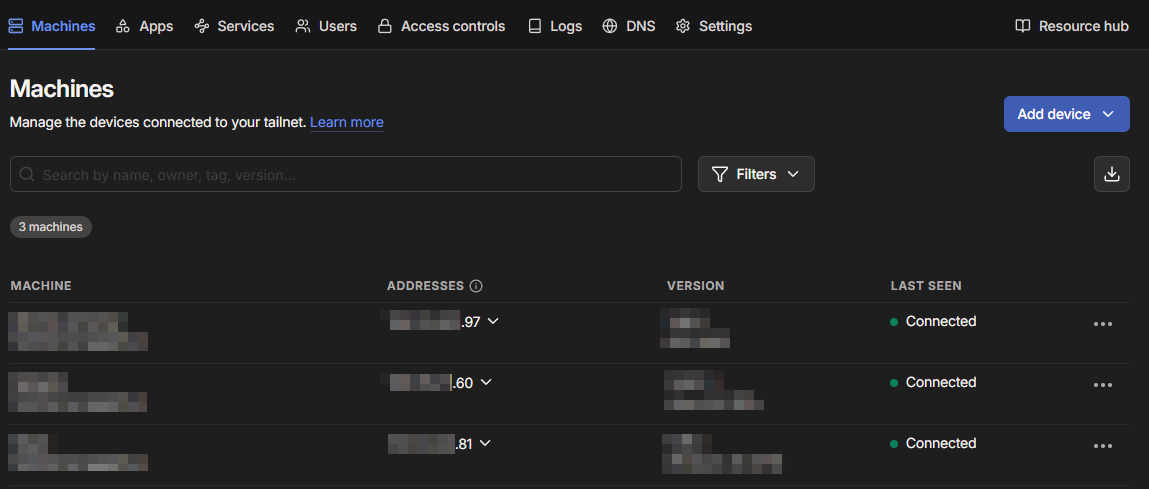
Important!
URLs and IP addresses can only be accessed from other devices that have Tailscale installed, and are linked to your account. This is the privacy advantage in that even if someone ends up knowing the URL or IP, they won't be able to access your service.
Clicking on one of the addresses will give you both URLs and IP addresses in order to access the device.
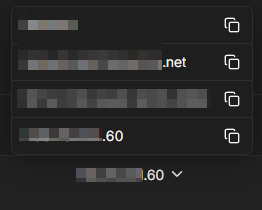
For instance, this is a device where I have a webapp installed at port 4789. By copying the URL or IP and adding :4789 to the end of it, I should be able to access the webapp.