How to Mount an ISO file
ISO files (.iso) are a way of preserving a data disc as an image. Think of the ISO file as a virtual version of the disc you'd pop into a drive; with the right software, you can make a virtual drive, and have your computer read it.
WinCDEmu
For Windows, I use WinCDEmu because it's freeware and open-source. After you install it on your machine, you can right-click .iso files and mount them to virtual drives.
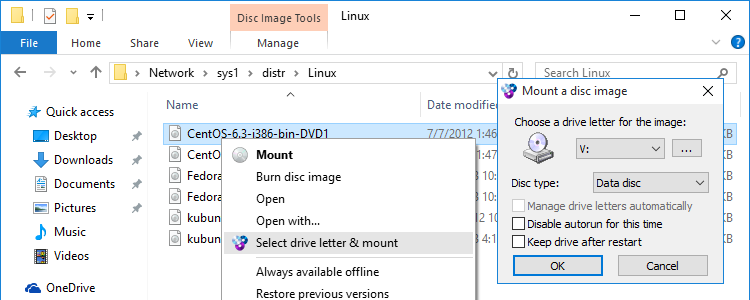
By clicking this "Select drive letter & mount" option, you can create a virtual CD-ROM/Blu-Ray drive on your Windows machine. The ISO will then act as the disc, and it'll show up in My Computer, like it would if you had a real disc and a real drive.
On Mac
Thankfully, MacOS has a solution for mounting ISOs built into the operating system. Right-clicking on an ISO file will allow you to Open With > DiskImageMounter.
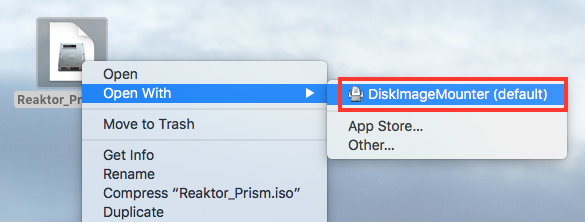
(Image taken from Native Instruments, as I don't have a Mac handy.)